OpsMemo
How it works
Capture → assign → work → done.
Screenshots of the current app with sample data and illustrative attachments. The app interface is in English; Help is available in English and Slovak.
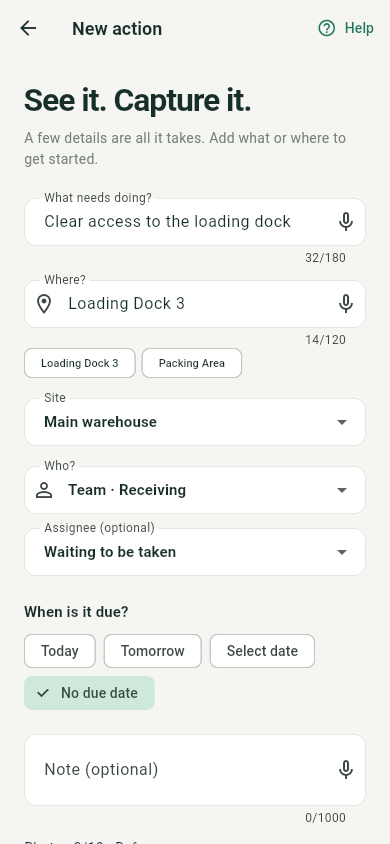
Team identifies the team; Assignee is a specific worker. A task may wait to be taken, but once taken it has a named owner. Due dates, photos and notes are optional.
Capture what needs doing
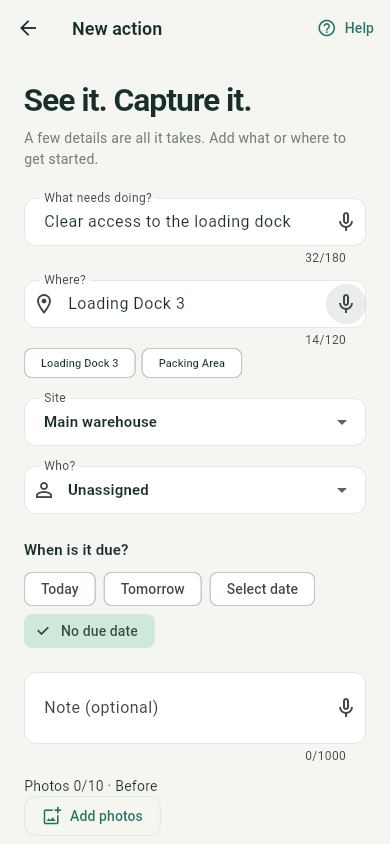
On Home, open New action. Fill in What needs doing? or Where; at least one is required. Describe a concrete outcome, such as “Clear access to the loading dock”.
Choose responsibility and a due date
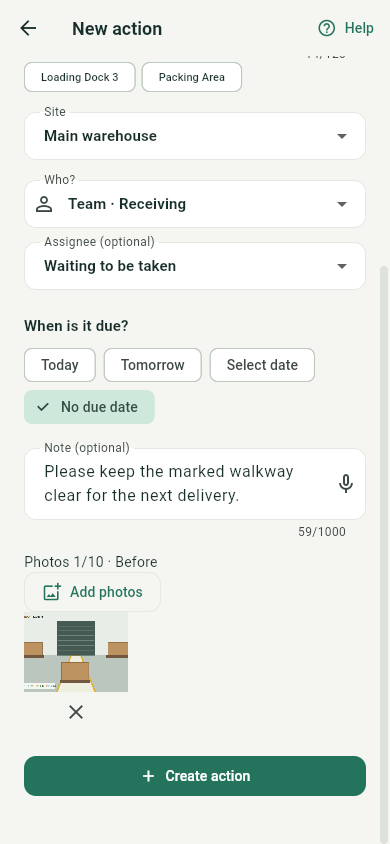
An Admin or Manager within their scope selects the Site and a team or person in Who?. For a team, keep Waiting to be taken or select a person in Assignee (optional). Add a due date under When is it due? if needed. Leave the date empty with No due date. Save a new task with Create action; assign an existing one through Edit and Save changes.
Take ownership and start
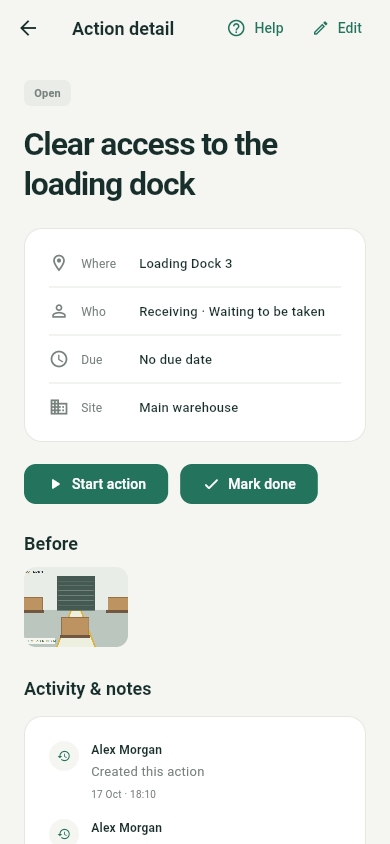
Open the action in Actions or My actions. Waiting shows available actions for your teams. An eligible member selects Start action to take a free team action and move it to In progress.
Mark it done and review the history
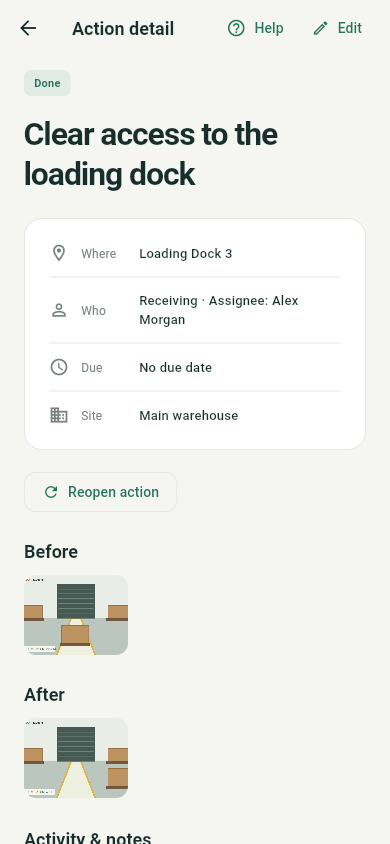
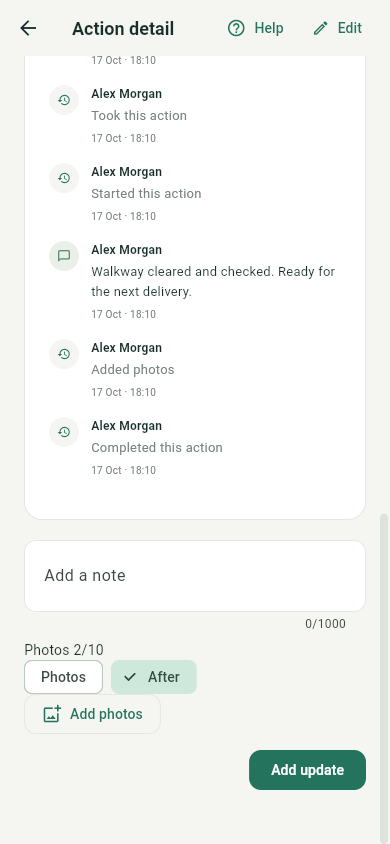
Once the work is complete, the authorised worker selects Mark done. The action becomes Done. Activity & notes keeps the record of ownership, updates and completion. A result photo is useful but is not required to finish.
Optional tools when they help
Add context and before photos
Fill in Note (optional) and select images with Add photos. Photos attached during creation are labelled Before. Then select Create action.
Keep progress and results with the action
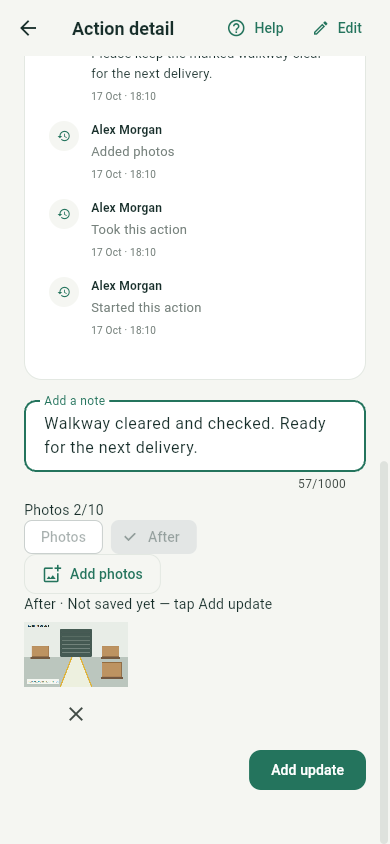
Write in Add a note, attach more images with Add photos, then select Add update. The assigned worker or an authorised manager can select After for photos of the result.
View the task history
QR and working offline
A saved location’s QR code helps prefill the location when creating a task. It is optional. Offline capture works after signing in and loading your workspace; first open the web app online and let its content load. New tasks wait on your device until sent. Once connected, wait for Synced and do not clear browser data while tasks are pending. Cached lists may be out of date. Changes to existing tasks require internet access.
Continue with the guide